Introduction
Getting started
Learn how to get started with SipMetrics and start viewing reports populated with your data.
Setup
Checklist to set up SipMetrics and begin viewing reports.
Architecture guide
Learn how the internals work.
API reference
Learn how to leverage the SipMetrics API for advanced scenarios.
Quick start
SipMetrics uses APIs (Application Programming Interfaces) on Vinoshipper to retrieve data about your account. SipMetrics doesn't change any data in your Vinoshipper account. It only reads data to add to the Sipmetrics database and build reports.
Vinoshipper API key
To get started, you'll need an API key from Vinoshipper. You can retrieve one at the Vinoshipper website.
Use the blue button called Create New Key. You must write down this information, because you will not be able to view it at a later date. If you can't create a key, contact Vinoshipper support.
Once you have an API key, you'll create a service on the SipMetrics web site and add your key.
Services
A service is a connection from SipMetrics to a data resource, such as Vinoshipper. Depending on your account type, you can have more than one service. Once you add a service, SipMetrics will start retrieving data for your account.
Adding a Service
To add a Vinoshipper service, you must be a SipMetrics administrator or account owner. Click the Services link under the Admin Settings section in the navigation menu, or navigate to https://app.sipmetrics.io/admin/services.
Once on the Services page, click the Add Service button.
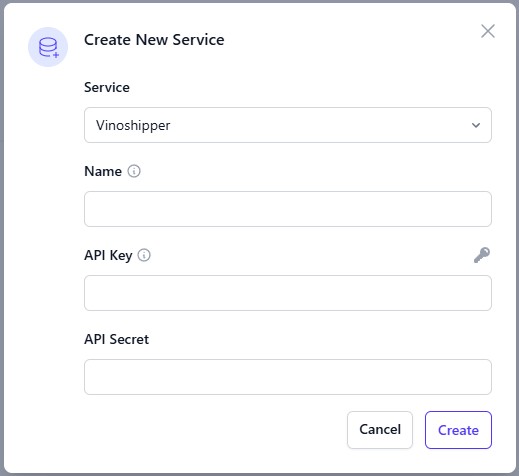
Provide the following information:
- Service: Choose 'Vinoshipper'
- Name: You can provide any name of your choice.
- API Key: Enter the API Key that you received from Vinoshipper
- API Secret: Enter the API Secret that you received from Vinoshipper.
Once you have provided all of this data, press the Create button.
What happens next?
After you create a service, SipMetrics will immediately begin pulling data from your Vinoshipper account. However, you should probably walk away and focus on something else for awhile.
In large account with years of Vinoshipper data, it can take hours or even days to retrieve all of the data. This is because Vinoshipper places limits on the use of their APIs, and we have to stay within those restrictions.
In addition, SipMetrics initially loads data into what's known as our transactional database. The transactional database is where data manipulation takes place, including loading, editing and deleting.
Reports are viewed using our data warehouse. Every 4-6 hours on a scheduled basis, SipMetrics moves data from the transactional database to the data warehouse. This means that even if a data update is received by SipMetrics, there is generally a short lag name until the data is visible in reports.
Getting help
If you need any help getting started with SipMetrics, CloudScope is here to help. Simply open a ticket, and we will respond within 24 hours in most cases.
Submit an issue
To request assistance or report an issue, please use our online ticketing system. You can create a ticket by sending an email to support@cloudscope.io. Alternately, you can create a ticket by visiting our support site.
Report consultation
SipMetrics was designed to be easy for non-developers to create and save their own reports. However, in some cases, customers may have a difficult report that they would like to create, or require additional assistance. CloudScope has a consulting option where we can create reports for you and add them to your library. Contact CloudScope for additional information.